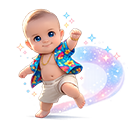
How to Make an AI Baby Dance Video (From a Photo)
If you've been scrolling through TikTok or Instagram Reels lately, you've probably seen the AI Baby Dance trend taking over your feed. Those adorable (and sometimes hilarious) videos of babies, kids, or even adults dancing to trending music? They're easier to make than you think.
In this guide, I'll walk you through exactly how to create your own AI Baby Dance video from just a single photo. No video editing experience needed, no complicated software to download—just a photo and a few minutes of your time.
What Is "AI Baby Dance"?
AI Baby Dance is an AI-powered video effect that brings photos to life by making them dance. The technology analyzes a photo of a face and body, then animates it to match a dance motion template. The result? A short, shareable video that looks like the person in your photo is actually dancing.
The trend exploded on social media because it's fun, easy to create, and perfect for sharing. Parents use it to make their baby photos dance, friends create funny videos of each other, and content creators use it to boost engagement on their posts.
The Easiest Way: Using Templates
If you're new to this, I recommend starting with the template method. It's the fastest way to get results, and you don't need to worry about technical settings or video editing. Here's the basic process:
- Upload a photo of the person you want to animate
- Choose from pre-made dance templates (K-pop, funny dances, cute moves, etc.)
- Click generate and wait 5-8 minutes
- Download your video and share it
The best part? You can try this for free with example photos on aibabydance.app. Sign up to get 60 free credits, and your downloaded videos won't have any watermarks.
Step-by-Step: Creating Your AI Baby Dance Video
Now let's dive into the details. I'll break down each step so you can get the best possible results.
Step 1: Choose the Right Photo
The quality of your input photo makes a huge difference in the final result. Here's what works best:
The ideal photo should be: Front-facing, well-lit, showing one person only, with a clear face and preferably full body visible. Think of a standard portrait photo where the person is looking at the camera.
Photos to avoid: Side profiles, heavily shadowed faces, blurry or low-resolution images, photos with sunglasses or masks covering the face, and busy backgrounds that distract from the subject.
Pro tip: If your first result doesn't look quite right, 90% of the time it's because of the input photo. Try a different photo with better lighting or a clearer angle, and you'll usually get much better results.
Step 2: Pick Your Dance Template
Templates determine how your photo will move. Different templates work better for different purposes:
Cute and family-friendly dances are perfect if you're making videos to share with family or post on your personal social media. These are safe, wholesome, and universally shareable.
Example: Cute Bounce template
Funny or meme-style dances tend to get higher engagement on TikTok and Reels. If you're creating content for views and laughs, these are your best bet.
Example: Funny Groove template
K-pop or performance dances have more complex movements and look impressive, but they require a clearer, higher-quality input photo to work well.
Example: K-pop Dance template
Holiday or birthday-themed templates are great for creating personalized video messages or seasonal content.
Generally, shorter templates (6-10 seconds) are more stable and generate faster than longer ones.
Step 3: Generate Your Video
Once you've uploaded your photo and selected a template, click the generate button. The AI will process your request and create your dancing video.
Generation typically takes 5-8 minutes, depending on the video duration, resolution you selected (720p or 1080p), and how many other people are in the queue. You can leave the page and come back later—your video will be saved in your account.
Behind the scenes, the AI is analyzing your photo, mapping facial features and body structure, then applying the dance motion while maintaining the person's appearance and characteristics.
Step 4: Download and Share
When your video is ready, you can preview it directly on the site. If you're happy with the result, download it as an MP4 file. The good news? Even free users can download watermark-free videos.
Your generated videos are stored for 14 days, so you can download them again if needed. After that, they're automatically deleted to save storage space.
If you want to create more videos, you can use your free credits (60 credits when you sign up) or purchase additional credits or a subscription plan for unlimited creations.
Free vs. Paid: What's the Difference?
You can start creating AI Baby Dance videos completely free. When you sign up, you get 60 credits to experiment with. Free users can use example photos with any template and download watermark-free videos.
The main limitation for free users is that you can only use the example photos provided on the site. If you want to upload your own photos—whether it's your baby, your friend, or yourself—you'll need to purchase credits or subscribe to a plan.
Paid users also get access to custom reference video uploads. Instead of using pre-made templates, you can upload your own dance video and have the AI apply that specific motion to your photo. This is perfect for content creators who want to recreate a specific trending dance or have complete creative control.
If you're interested in more advanced workflows with prompt-based control (similar to Kling AI or Viggle), check out our AI Baby Dance Prompts Library for copy-paste settings and tips.
For Kling AI Users: Getting That Smooth Motion
If you've been searching for "Kling AI baby dance," you're probably looking for that smooth, realistic motion quality that Kling is known for. Our generator is optimized for the AI Baby Dance trend with similar quality output.
For users who prefer working with prompts and detailed settings (like you would with Kling, Viggle, or other AI video tools), we've prepared a complete prompts library with recommended settings. You'll find copy-paste prompts and configurations that work well for different scenarios.
Some safe default settings that work well for most videos: Use a 9:16 ratio (perfect for TikTok and Reels), keep duration between 6-10 seconds, use stable camera movement, set motion to medium intensity, prioritize high face detail, and select high quality output.
To reduce common glitches, you can use negative prompts like: "blur, jitter, face warp, extra fingers, distorted hands, heavy flicker, low-res, text, watermark."
Making Your Video Go Viral: CapCut Tips
Want to take your AI Baby Dance video to the next level? CapCut is the perfect tool for adding those finishing touches that make videos pop on social media.
Here's my recommended workflow: First, generate your MP4 on our site. Then import it into CapCut (make sure it's in 9:16 format). Add trending music that matches the dance movements, and use beat cuts to sync the video with the music. Finally, export in HD quality for TikTok or Instagram Reels.
One trick I've learned: If your AI-generated video feels "too smooth" or artificial, adding music with tiny beat cuts makes it feel more natural and native to TikTok's style. It's a small detail that can make a big difference in engagement.
Troubleshooting Common Issues
Sometimes your AI Baby Dance video might not turn out exactly as expected. Here are the most common issues and how to fix them:
The video flickers or jitters
This usually happens when the background is too complex or the photo quality isn't great. Try using a photo with a simpler, solid-colored background. If that doesn't help, choose a less intense dance template with slower movements. Sometimes switching to a clearer, higher-resolution photo solves the problem entirely.
The face looks warped or drifts
Face warping typically occurs when the input photo isn't front-facing enough, or when facial features are partially obscured. Make sure you're using a photo where the person is looking directly at the camera. Avoid photos with sunglasses, masks, or hands covering parts of the face. If you're using a more intense dance template, try reducing the motion intensity or choosing a simpler template.
The hands look strange or distorted
AI still struggles with hands sometimes—it's a known limitation across most AI video generators. To minimize this, choose templates with less arm movement or that keep hands closer to the body. You can also try using a tighter crop that focuses more on the face and torso rather than showing the full body with extended arms.
The output quality is low
Remember: garbage in, garbage out. If your input photo is low resolution or blurry, even selecting 1080p output won't magically fix it. Always start with the highest quality photo you have. A clear 720p output from a great photo will look better than a 1080p output from a poor-quality photo.
Frequently Asked Questions
Do I need to download an app?
No, this is a browser-based web app. You can use it on your phone, tablet, or computer without downloading anything. Just visit the website, and you're ready to create.
Can I really make videos for free?
Yes! Sign up to get 60 free credits. You can use example photos with any template and download watermark-free MP4 files. If you want to upload your own photos, you'll need to purchase credits or subscribe to a plan.
How long does it take to generate a video?
Most videos are ready in 5-8 minutes. The exact time depends on the video duration, resolution (720p generates faster than 1080p), and how many people are currently using the service.
What kind of photo works best?
The best photos are front-facing, well-lit, show one person clearly, and ideally include the full body. Think of a standard portrait photo where the person is looking at the camera with good lighting.
Can I use my own dance video as a reference?
Yes, but this is a paid feature. Free users can use the pre-made templates, which is usually enough for most people. If you want to upload a custom dance reference video, you'll need to purchase credits or subscribe.
How long are my videos saved?
Generated videos are stored for 14 days, giving you plenty of time to download them. After that, they're automatically deleted to save storage space. Make sure to download any videos you want to keep!
Ready to Create Your First AI Baby Dance Video?
Now that you know how it works, it's time to try it yourself. Start with a good photo, pick a fun template, and see what you can create. The first one is always the most exciting!
Whether you're making a cute video of your baby, a funny clip of your friend, or content for your social media, AI Baby Dance makes it simple and fun. And who knows? Your video might be the next one to go viral.